

StreetTeam · Live
Livestream to every platform
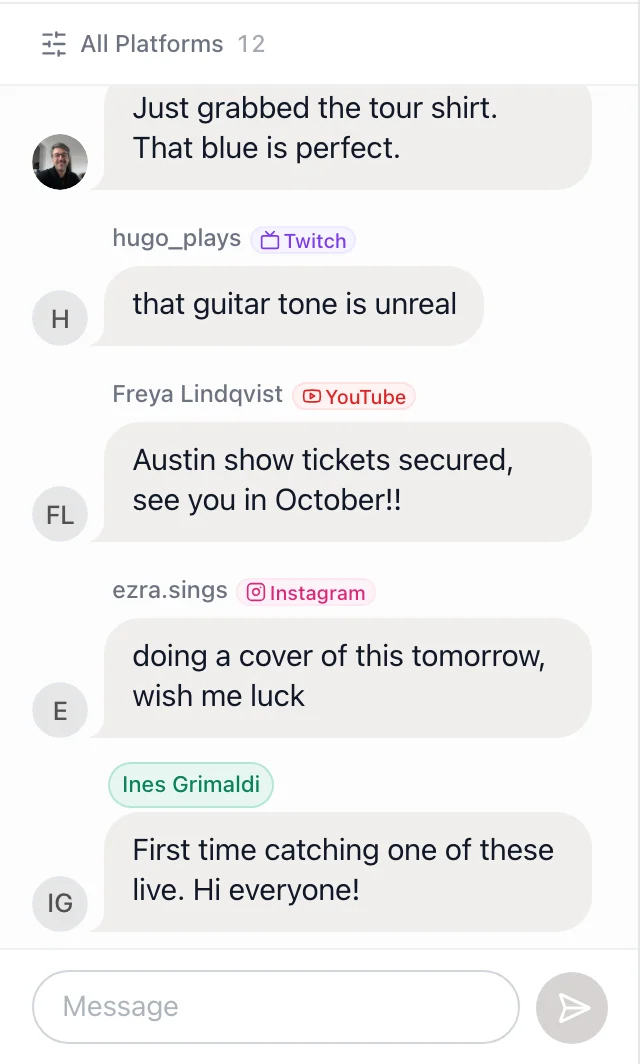
Go live once on your StreetTeam stage and stream to YouTube, Facebook, Instagram, X, TikTok, Twitch and Kick at the same time. Vertical platforms get a full-screen 9:16 picture, and comments from every platform land in your stage chat.
Paste it into Claude, ChatGPT or your StreetTeam robot. It sets everything up with you.
Your agent never sees a password or stream key · Your role still applies
One show. Every platform. One room.
- YouTube
- TikTok
- X
- Twitch
- Kick
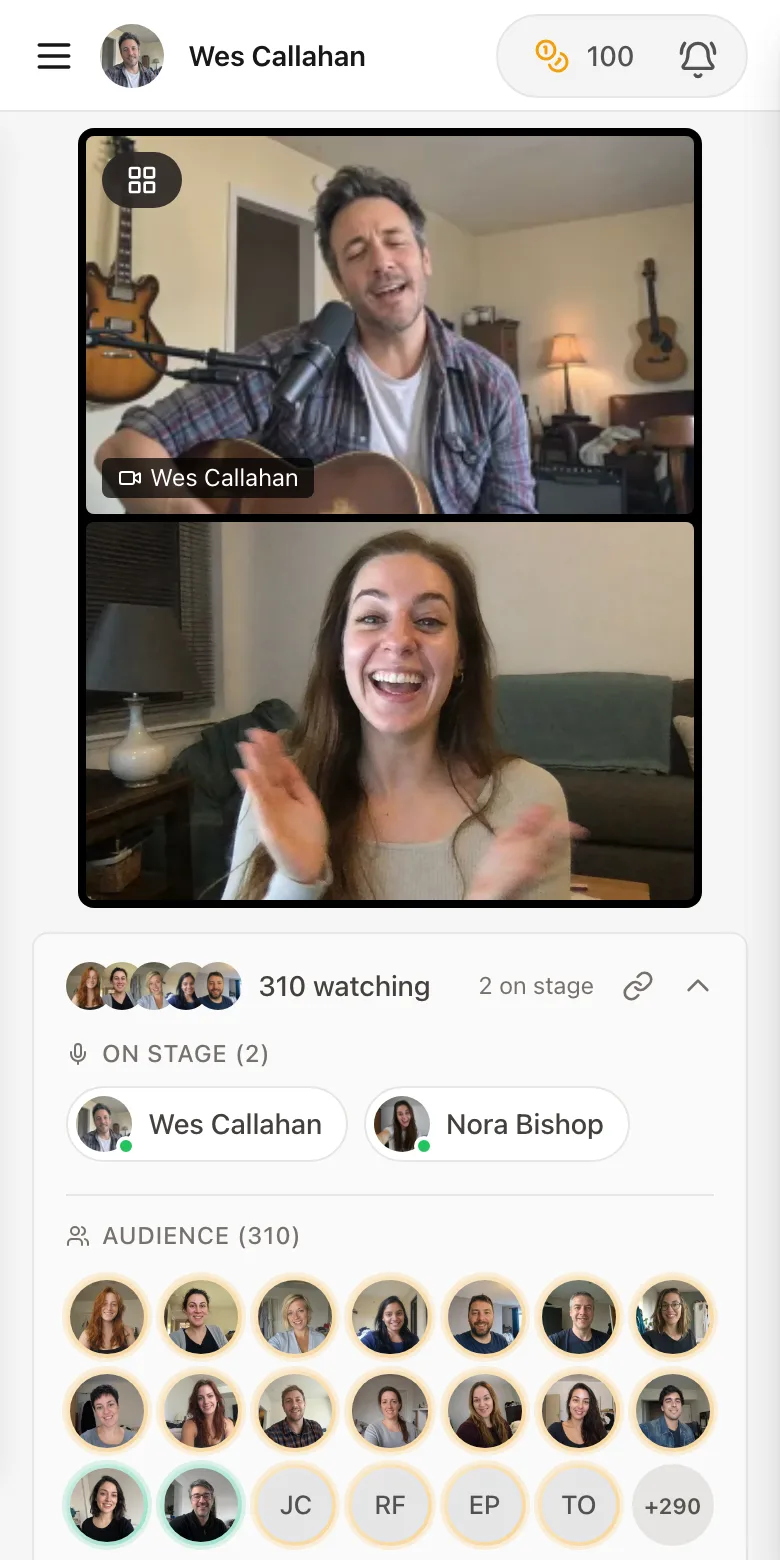
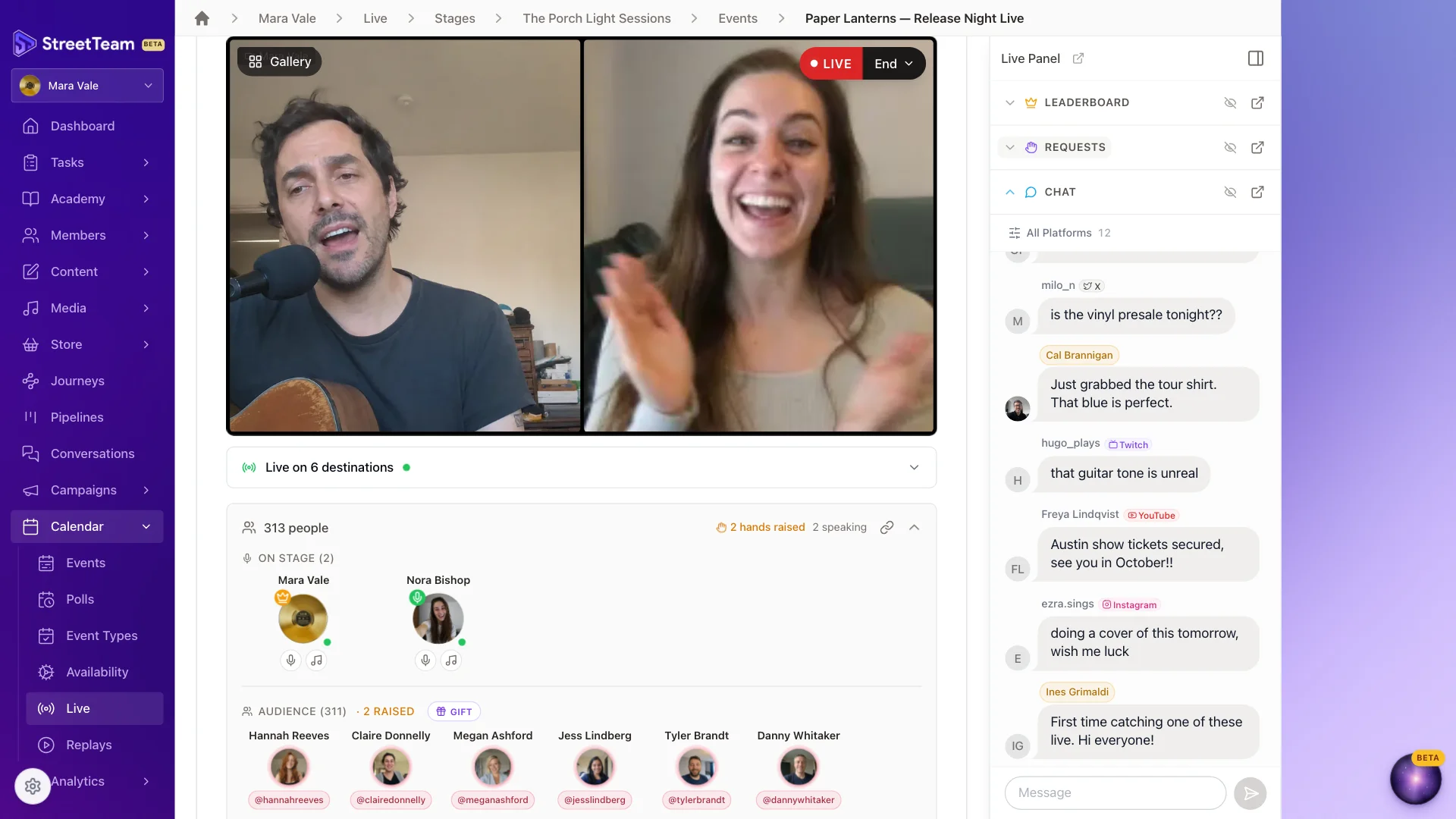
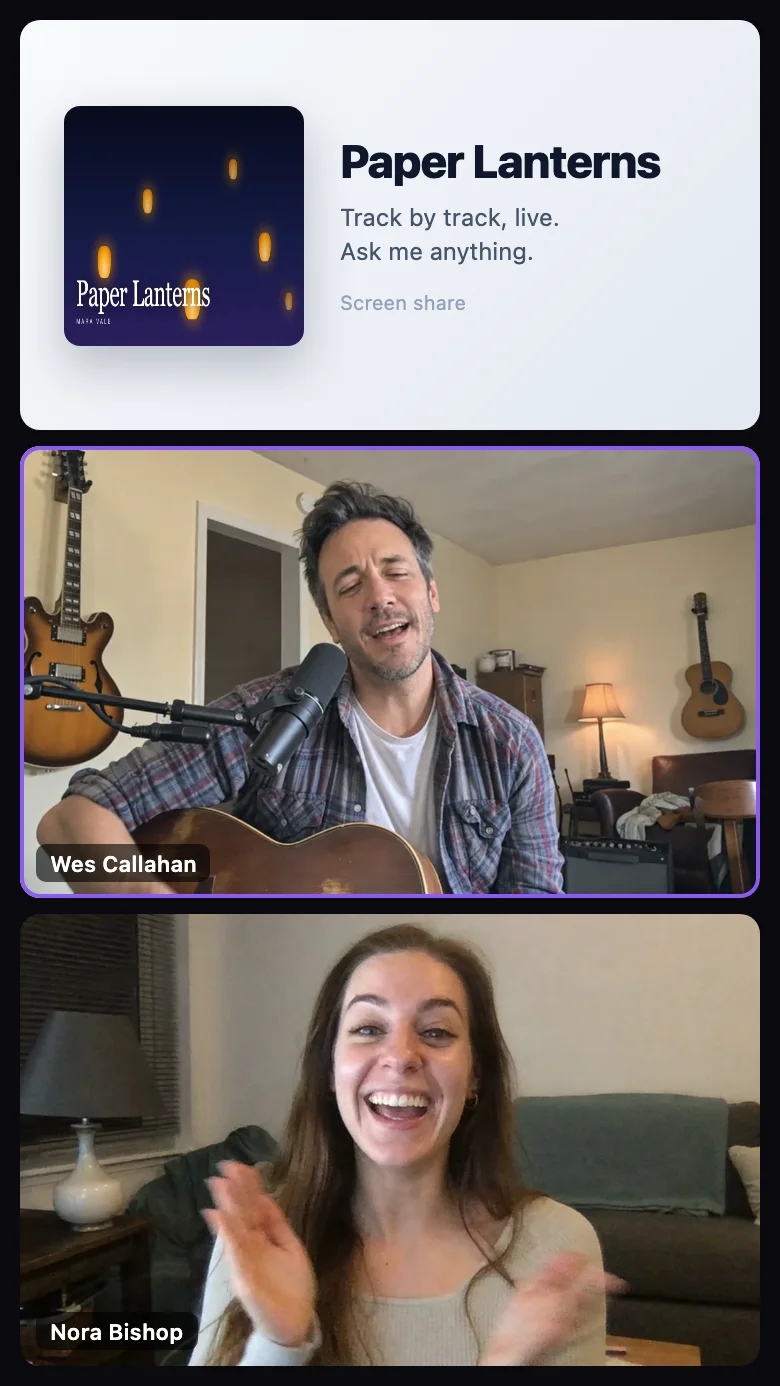
What you get: you and a follower on your stage, live on every platform at once, and every platform's comments in one chat.
1. Copy
Press Copy for agent.
2. Paste
Into a new chat with Claude, ChatGPT or your StreetTeam robot.
3. Click
Press the buttons it gives you: sign in to StreetTeam, then Connect for each platform. It never asks for a password or stream key.
Read the prompt
Set up livestreaming for my StreetTeam workspace, so one show on my StreetTeam stage streams to my social platforms with their comments in my stage chat. Do the work yourself; my part is clicking what you give me.

1. Connect. If StreetTeam tools are already available to you, skip to step 3. Otherwise add StreetTeam's hosted MCP server (https://streetteam.fm/api/mcp):
   - Codex: run `codex mcp add streetteam-hosted --url https://streetteam.fm/api/mcp`, then `codex mcp login streetteam-hosted`.
   - Claude Code: run `claude mcp add --transport http --scope user streetteam-hosted https://streetteam.fm/api/mcp`, then `claude mcp login streetteam-hosted`.
   Run these yourself. If your sandbox blocks a command, ask me to allow it.
   - Only if you are ChatGPT or the Claude app, which cannot add servers themselves: give me the fewest clicks to add a custom connector named StreetTeam with that URL, then wait for me.
   - Any other assistant (Gemini, Grok and the rest): add it as a remote MCP server over HTTP with OAuth sign-in if you can, or give me the fewest clicks to do it; if your app cannot connect to MCP servers at all, say so in one line.
2. Sign in. A StreetTeam page opens in my browser; tell me to click the big purple button on it (Connect, or Approve & connect). That click should be the only thing I do. Never ask me for a password or token. If your tools only appear in a new session, tell me in one short line to start a new chat and paste this message again.
3. Read. Call list_artists, pick the workspace my tasks point to and name it, then call get_livestream_setup for it. Work through to the summary without stopping for questions; if I ask for a checklist, call start_livestreaming_setup_workflow so the steps land in my StreetTeam tasks.
4. Set up every platform that is connected or can be connected (YouTube, Facebook, Instagram, X, TikTok, Twitch, Kick), skipping any already set up:
   - YouTube, Facebook, Twitch or Kick: for each one already connected, call add_stream_destination_from_connection (landscape) now. Put the connectUrl of every one not connected into ONE message to me, all at once; once I say done, add those the same way.
   - Instagram, X or TikTok: keys change every show. Before handing this to me, find and load any browser tool you have (Claude in Chrome, a desktop app's built-in browser, ChatGPT agent, computer use), open the platform's live producer in my signed-in session, create the live with my show's title, and pass its stream URL and key straight to set_show_stream_key. Only if none of them reaches my signed-in session, tell me to paste it in StreetTeam (event → Stream to destinations → + Add). Never write the key in chat; if one lands here, get a fresh one. Where to find each: https://streetteam.fm/docs/livestreaming/instagram, https://streetteam.fm/docs/livestreaming/x, https://streetteam.fm/docs/livestreaming/tiktok. TikTok needs LIVE access; without it, tell me to post clips there after the show.
   Never ask me for a password, token or stream key, and never write a key in chat. Fix a destination with update_stream_destination.
5. Choose shows. Call list_event_types and read my livestream event types in get_livestream_setup. Apply the recommendation yourself with set_event_type_restream: mode auto for public shows (masterclass, workshop), and mode off, never auto, for private calls (coaching) and for every fan_bookable type. Leave a type you cannot place as it is and name it in the summary. Report each change with how to undo it (set_event_type_restream back to its old mode). Do not call set_restream_auto_start unless I ask.
6. Comments. Tell me in one line, not as a question: Instagram, X, TikTok, Twitch or Kick comments reach my stage chat only when I go live from the StreetTeam desktop app (https://streetteam.fm/download); I add each there under Stream to destinations → Comments, signing in once where asked.
Finish in under 150 words: what you changed and how to undo it, what is live, any Connect link I have not clicked yet, what I still do before each show (a fresh Instagram, X or TikTok key), and the guide: https://streetteam.fm/docs/livestreaming. End with two one-line offers, not steps: a line on the video for viewers who cannot press my StreetTeam button (set_event_type_social_overlay, once I give a headline and short link), and a 5-minute unlisted test show on a test stage (create_event) to check each platform shows me and a comment from each reaches my stage chat.
Prefer a checklist? In StreetTeam, start the Set up livestreaming to your socials workflow under Tasks › Workflows. Pick your platforms and you get only those steps.
Pick a platform
Each platform has its own guide: what you need, what to do once, and what to do before every show.
- YouTube Connect your channel once. StreetTeam creates each show’s broadcast and key, so there is nothing to paste. Connects once Landscape 16:9 Comments: Automatic
- Facebook Connect your Facebook Page once. StreetTeam creates each show’s live video on the Page for you. Connects once Landscape 16:9 Comments: Automatic
- Instagram Instagram hands out a new key for every Live, so you copy it from instagram.com before each show. A full-screen 9:16 picture. Key each show Portrait 9:16 Comments: Desktop app
- X (Twitter) Create a broadcast in X Producer before each show and paste its RTMP URL and key into StreetTeam. Key each show Landscape 16:9 Comments: Desktop app
- TikTok Only accounts with LIVE access get a stream key. If you have it, paste a new key before each show; if not, post clips after the show. Key each show Portrait 9:16 Comments: Desktop app
- Twitch Connect once and StreetTeam fetches your permanent key and sets your stream title for each show. Connects once Landscape 16:9 Comments: Desktop app
- Kick Connect once, or paste your permanent key once. Nothing to do before each show. Connects once Landscape 16:9 Comments: Desktop app
At a glance
| Platform | How it connects | Picture | Comments in your chat |
|---|---|---|---|
| YouTube | Connect once | Landscape 16:9 | Automatic |
| Connect your Page once | Landscape 16:9 | Automatic | |
| New key each show | Portrait 9:16 | Desktop app | |
| X (Twitter) | New key each show | Landscape 16:9 | Desktop app |
| TikTok | Key each show, with LIVE access | Portrait 9:16 | Desktop app |
| Twitch | Connect once (or paste your key once) | Landscape 16:9 | Desktop app |
| Kick | Connect once (or paste your key once) | Landscape 16:9 | Desktop app |
1. Connect once, then add destinations
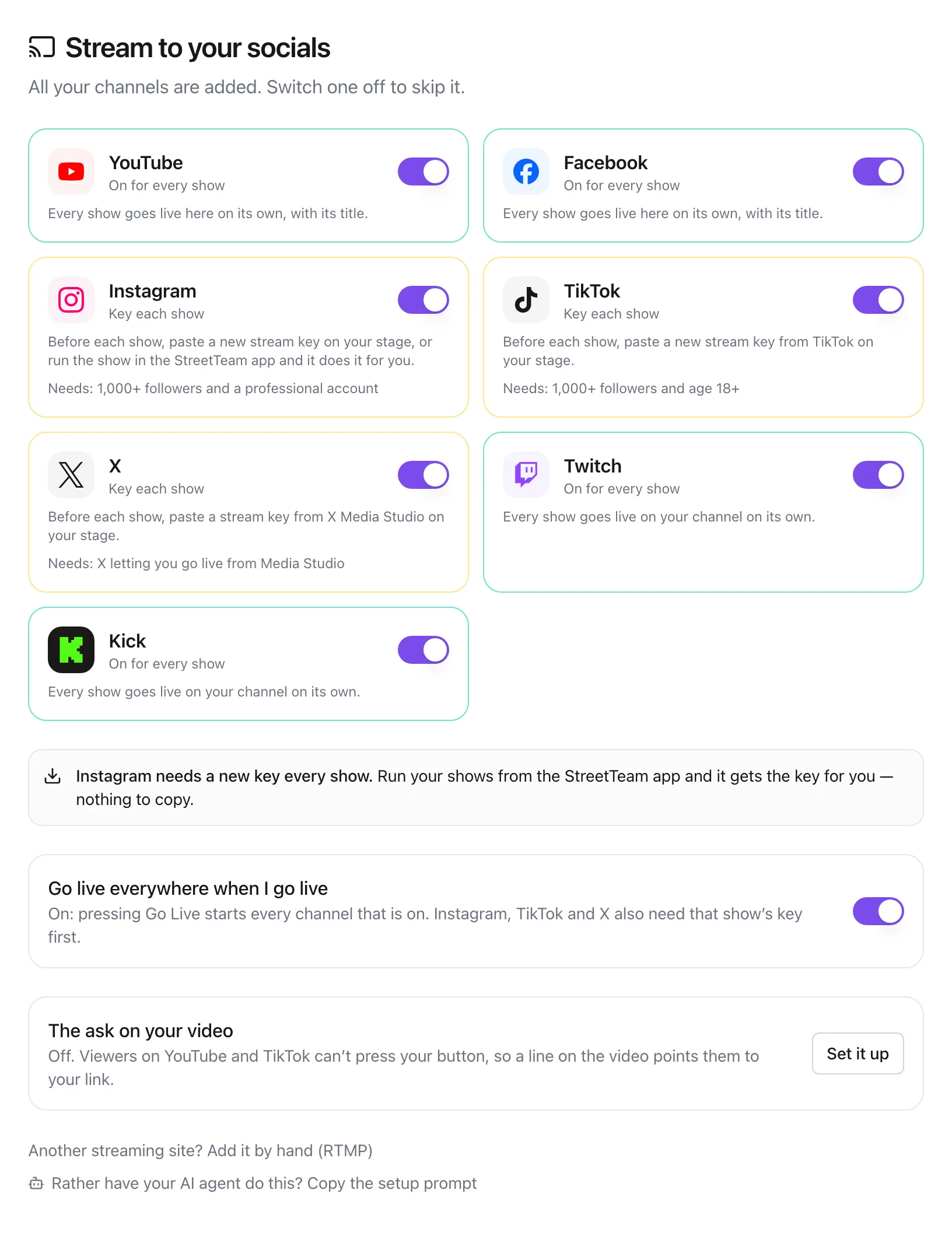
Open Live › Stream to socials, tap every platform you go live on, and press Set up. Instagram, TikTok and X are added straight away; then you sign in to YouTube, Facebook, Twitch and Kick one after another, coming back to the same page each time. After that StreetTeam creates each YouTube and Facebook broadcast for you and fills in the Twitch and Kick keys, so there is nothing to copy, and every show goes out to all of them.
Instagram, X and TikTok hand out a new key for each show, so you copy it from the platform and paste it into StreetTeam before you go live. Their guides show exactly where.
2. Choose which shows stream everywhere
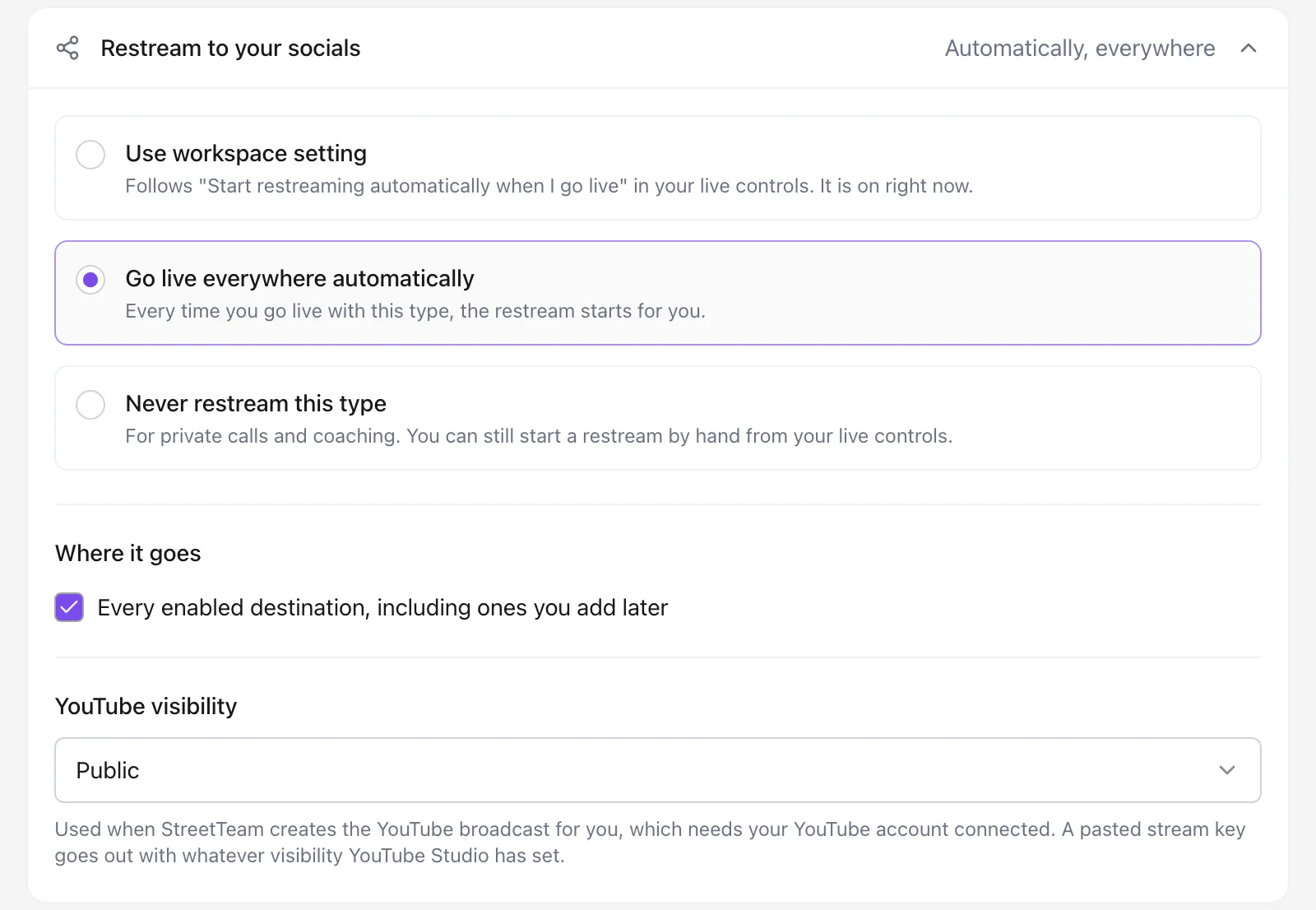
Open Calendar › Event types, pick a type and find Restream to your socials. Choose Go live everywhere automatically for public shows such as a masterclass or workshop, and Never restream this type for private calls such as coaching. Or leave it following your workspace's switch. You can also pick which platforms each type goes to, and its YouTube visibility.
3. Bring every platform's comments into your chat
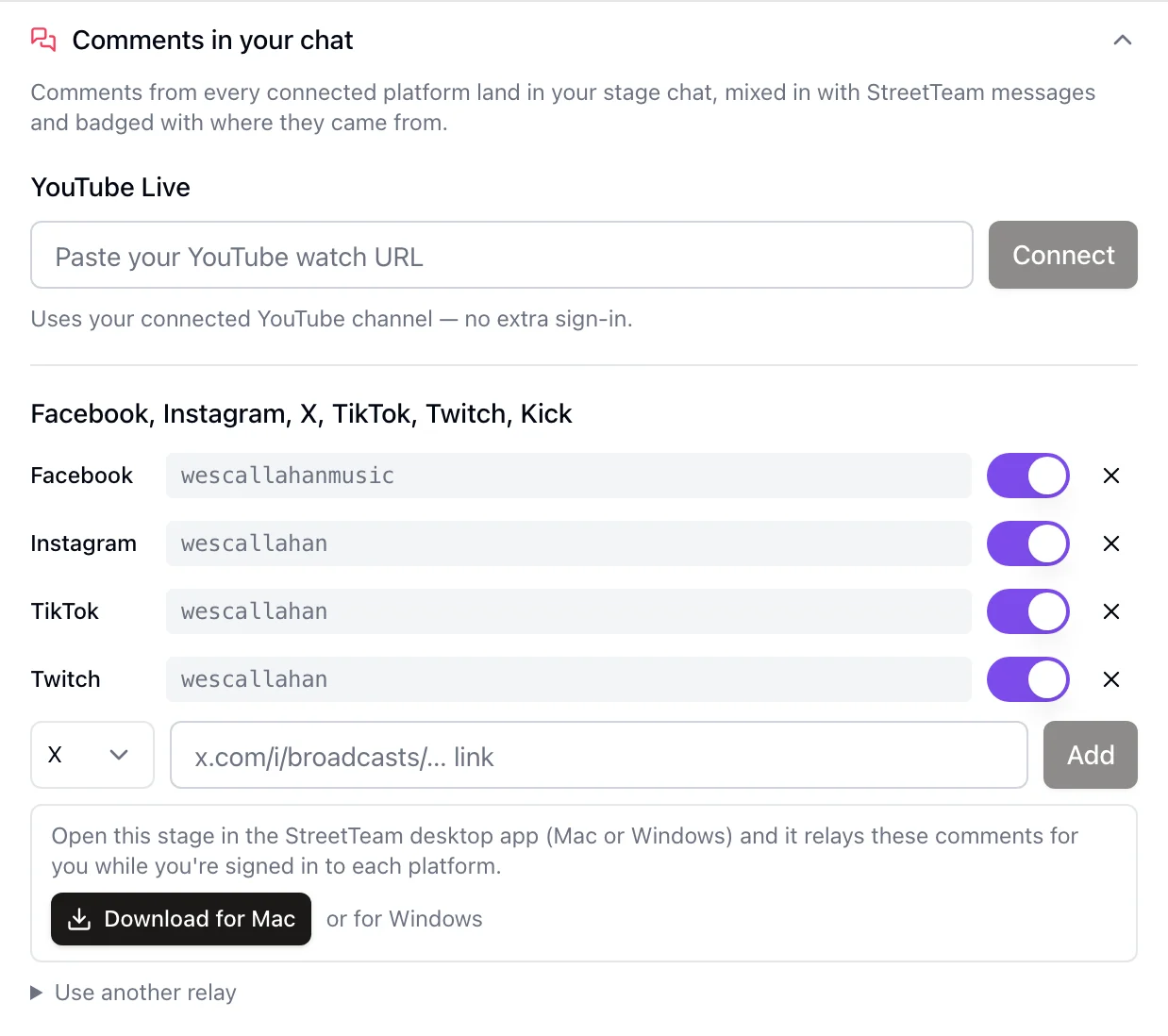
YouTube comments, and Facebook comments from a connected Page, arrive on their own. For Instagram, X, TikTok, Twitch and Kick (and Facebook without a connected Page), StreetTeam relays comments through the StreetTeam desktop app for Mac and Windows, which reads them for you while you're signed in:
Run your show from the StreetTeam desktop app. Don't have it yet? Get the desktop app.
- On the event, open Stream to destinations → Comments in your chat and add each platform's handle or live link.
- Press Sign in next to Instagram, X, TikTok or Facebook once, and sign in in the window that opens. Twitch and Kick need no sign-in.
- Go live. The relay starts by itself and stops when the show ends.
Phones and normal browsers can't read another site's chat, so there only YouTube and a connected Facebook Page come through.
Optional: put the ask on your video
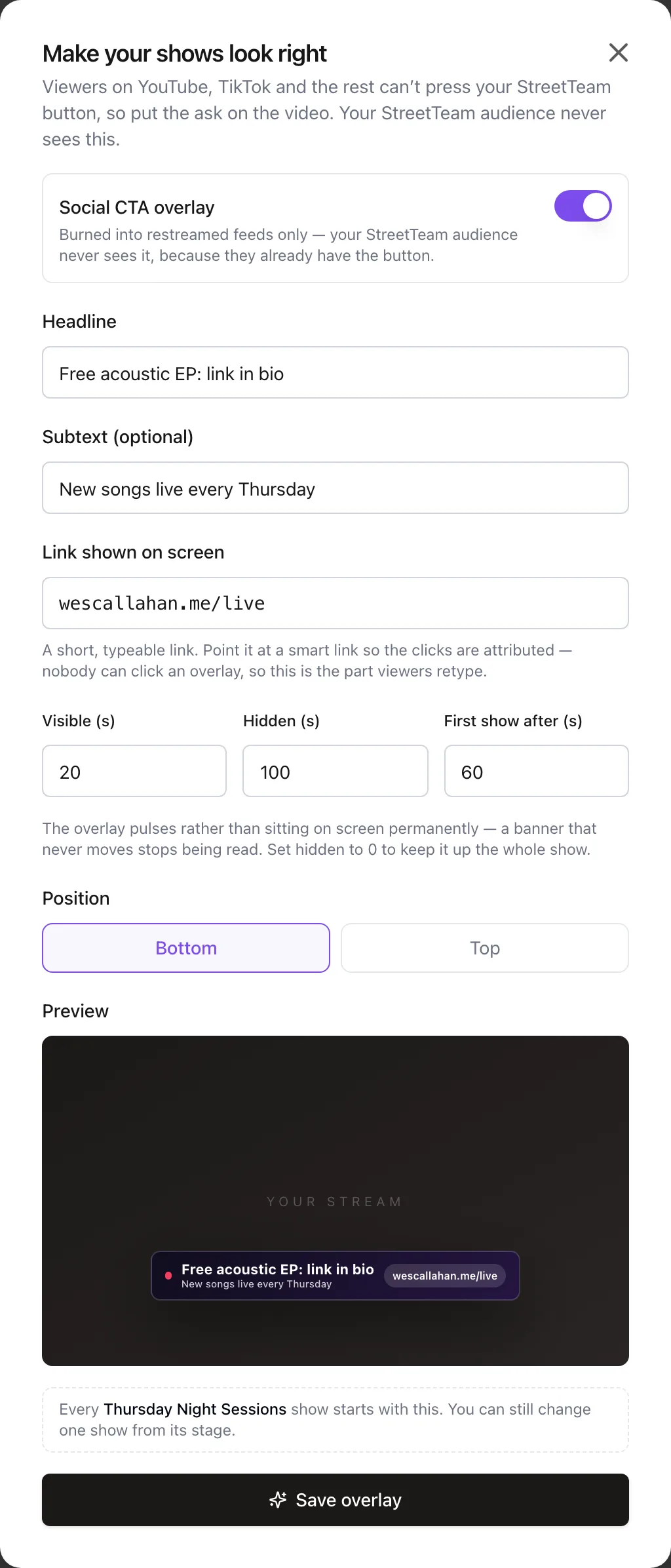
Viewers on YouTube, TikTok and the rest can't press your StreetTeam button, so tell them on the video: a short line such as Free gift: link in bio, and a link they can type. It's burned into the video you send out, never shown to your StreetTeam audience, and it comes and goes so it keeps getting read.
Set it once for each kind of show. In Live › Stream to socials, press Set it up next to The ask on your video (or Make your first show look right when you finish connecting), pick the event type, and save. The preview shows exactly what viewers will see. Every show of that type starts with it, and you can still change one show from its stage. Point the link at one of your smart links so the visits are counted.
4. Do a 5-minute test show
- Schedule a short test event on a test stage, with YouTube set to Unlisted.
- Press Go Live (not Rehearse). The restream starts by itself if the event type goes live everywhere; otherwise press Start under Stream to destinations.
- Press Go live in Instagram and X once their previews show. YouTube, Facebook, Twitch and Kick start on their own.
- Check each platform shows you, with Instagram and TikTok full-screen vertical. Leave a comment on each and watch it arrive in StreetTeam.
- If you set up the ask on your video, wait a minute for it to appear on the YouTube test, and check the headline and link read well. Change it in Stream to socials for every show, or on the stage for this one.
- Stop the restream, end the show, and hide or delete the test posts.